Defender Control Blog

Comprehensive guides, tutorials, and insights about Windows Defender management, system optimization, and cybersecurity best practices.

25+
Articles
50K+
Monthly Readers
4.9/5
Content Rating
How to disable Windows Defender permanently
How-to Guide December 15, 2024

How to Permanently Disable Windows Defender with Defender Control

Learn how to cleanly and safely disable Microsoft Defender on Windows 10/11 using Defender Control. This guide covers prerequisites, tamper protection requirements, and validation checklists trusted by IT professionals.

Why disable Microsoft Defender?

Disabling Defender temporarily or permanently can be useful when you:

  • Run a third-party enterprise antivirus that conflicts with Defender
  • Need every ounce of performance for gaming, rendering, or data processing
  • Operate lab machines or virtual machines with custom security stacks
  • Transfer large files and want to avoid Defender scanning overhead

Why Defender Control?

  • • 100% free, portable, and open source
  • • Works on every modern Windows build (7 SP1 → 11)
  • • Handles real-time protection, cloud scanning, and SmartScreen
  • • Provides one-click restore functionality
  • • Actively maintained by the Sordum community

Step-by-step installation

  1. Download the ZIP archive from Sordum.org or GitHub Releases.
  2. Extract the content to a folder you control (e.g., C:\Tools\DefenderControl).
  3. Right-click dControl.exe and choose “Run as administrator”.
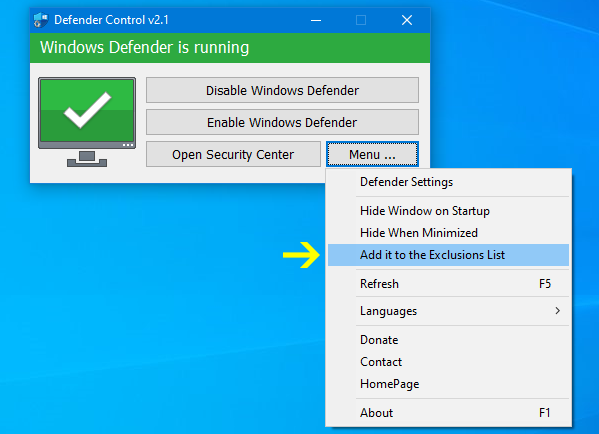
  4. Click “Add it to the exclusion list” inside the app to avoid false positives.
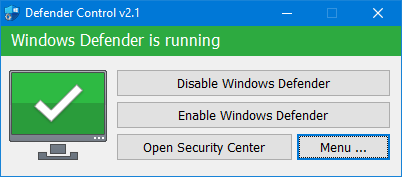
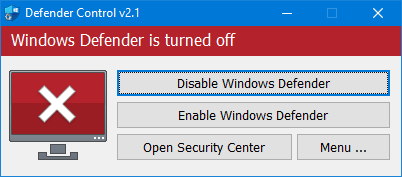
  5. Press “Disable Defender” and wait for the indicator to turn red.
  6. Restart Windows to commit the registry and service changes.

Verification checklist

  • Windows Security dashboard shows protection settings as “Managed by your organization”.
  • Windows Defender Antivirus Service is stopped and disabled.
  • No new Defender definition updates download automatically.
  • File transfers, compiles, or backups run without Defender interference.

Restoring Microsoft Defender

Need to turn Defender back on? Launch Defender Control, click “Enable Defender”, wait for the indicator to turn green, and reboot. All original registry keys, services, and scheduled tasks will be restored automatically.
Troubleshooting Defender Control
Troubleshooting December 10, 2024

Defender Control Troubleshooting Reference (Error Messages & Fixes)

Use this playbook to resolve every known Defender Control error—from access-denied prompts to services mysteriously re-enabling. Bookmark it for help desk teams and lab environments.

Issue 1: “Cannot disable Defender”

Common symptoms

  • • Button stays gray or status never turns red
  • • Error: “Service could not be stopped”
  • • Event Viewer shows access denied messages

Fix checklist

  1. Run Defender Control as administrator.
  2. Temporarily disable Tamper Protection.
  3. Add the app folder to Defender exclusions.
  4. Close third-party antivirus or EDR agents.

Issue 2: Defender re-enables after reboot

Windows Update, Group Policy refresh, or remediation services can undo Defender Control changes.

  • • Pause Windows Update for 7 days.
  • • Disable “Microsoft Defender Antivirus Service” via services.msc.
  • • For enterprise machines, unlink conflicting GPOs.
  • • Re-run Defender Control and restart.

Issue 3: Conflicts with other antivirus tools

  • • Always install or enable the third-party AV first.
  • • Add Defender Control to that AV’s exclusion list.
  • • Reboot between enabling/disabling to avoid locked services.
  • • Use Safe Mode if services refuse to stop.

Preventive best practices

  • • Keep a pristine copy of Defender Control outside Program Files.
  • • Document your Defender state before applying cumulative updates.
  • • Maintain a restore point or system image for enterprise builds.
  • • Train users to re-enable Defender before contacting support.
Comparison of Defender control tools
Comparison December 5, 2024

Defender Control vs. Other Windows Defender Management Tools

Not sure which Defender management utility to trust? We benchmarked the most popular options for transparency, automation, enterprise readiness, and support lifecycle.

Defender Control (Sordum)

  • ✔ Fully open source, portable, and scriptable
  • ✔ Works even when Group Policy blocks Defender settings
  • ✖ Requires manual updates (no auto-updater)
  • ✖ Support handled by community, not a commercial vendor

Third-party GUI wrappers

  • ✔ Friendly UI for non-technical users
  • ✔ Integrated scheduling in some apps
  • ✖ Closed source with unknown registry modifications
  • ✖ Often flagged by antivirus products

Full antivirus suites

  • ✔ Defender disabling happens automatically during install
  • ✔ 24/7 support, threat intelligence, and compliance reporting
  • ✖ Subscription cost and heavier resource usage
  • ✖ Harder to revert back to Defender-only mode

Recommendation

Choose Defender Control when you need transparent, script-friendly control over Windows Defender. Use a commercial antivirus suite when you need layered security, central management, and compliance reporting.