Defender Control Free Windows Defender Manager

The ultimate free, open-source tool to disable, enable, and manage Microsoft Defender antivirus on Windows 10/11. Solve antivirus conflicts, improve system performance, and take full control of your Windows security.

Complete Control

Full disable/enable control over Windows Defender services

Performance Boost

Eliminate resource usage and speed up file operations

Open Source

Free, transparent, and community-driven software

1.7K+
GitHub Stars
Trusted by developers
100K+
Downloads
Worldwide users
4.8/5
User Rating
Based on reviews
Free
Forever
No hidden costs

Compatible with:

Windows 11 Windows 10 Windows 8.1 Windows 7

Why Choose Defender Control?

Defender Control offers comprehensive Windows Defender management with advanced features that other tools simply cannot match. Here's what makes it the best choice for power users.

Complete Defender Control

Permanently disable or enable all Microsoft Defender services including real-time protection, cloud protection, automatic sample submission, and behavior monitoring.

  • • Real-time protection control
  • • Cloud-delivered protection
  • • Automatic sample submission
  • • Behavior monitoring

Performance Optimization

Eliminate Windows Defender's resource usage and dramatically improve system performance. Experience faster file copying, reduced CPU usage, and improved gaming performance.

  • • Up to 50% faster file operations
  • • Reduced CPU and RAM usage
  • • Better gaming performance
  • • Faster system boot times

Antivirus Conflict Resolution

Seamlessly manage multiple antivirus solutions. Defender Control prevents conflicts between Windows Defender and third-party antivirus software like Avast, Kaspersky, and Norton.

  • • Compatible with all major AV
  • • Prevents system conflicts
  • • Smart detection algorithms
  • • Easy switching between AVs

Tamper Protection Bypass

Advanced bypass technology for Windows 11's Tamper Protection. Gain full administrative control over Defender settings that Microsoft tries to lock down.

  • • Windows 11 compatible
  • • Tamper protection bypass
  • • Administrative privileges
  • • Registry protection

Open Source & Transparent

Completely open-source on GitHub. Review the code, verify security, and contribute improvements. No hidden backdoors or suspicious activities - complete transparency.

  • • Full source code available
  • • Community contributions
  • • Regular security audits
  • • Transparent development

Multi-Language Support

Supports 25+ languages including English, Spanish, French, German, Italian, Turkish, Arabic, Chinese, Japanese, Korean, Russian, and many more for global accessibility.

  • • 25+ supported languages
  • • RTL language support
  • • Unicode compatibility
  • • Localized user interface

Advanced Configuration

Fine-tune every aspect of Windows Defender. Control scheduled scans, exclusion lists, reporting settings, and integration with Windows Security Center.

  • • Scheduled scan control
  • • Custom exclusion lists
  • • Reporting preferences
  • • Security Center integration

Easy Restore & Recovery

One-click restore functionality. Easily re-enable Defender if needed, with automatic system recovery and settings restoration to ensure Windows stability.

  • • One-click restore
  • • Automatic recovery
  • • Settings backup
  • • System stability checks

Smart System Integration

Intelligent system integration that works with Windows Updates, Group Policy, and enterprise environments. Perfect for IT administrators and power users.

  • • Windows Update compatible
  • • Group Policy support
  • • Enterprise-ready
  • • IT administrator tools

Technical Specifications

Architecture

x64 & x86 Support

File Size

~500KB Portable

Last Updated

March 2022

License

MIT License

What Users Are Saying

Real experiences from users worldwide who have successfully managed their Windows Defender with Defender Control. Join thousands of satisfied users.

JD

John Davis

Software Developer

"Finally, a tool that actually works! I've tried countless Defender disablers, but Defender Control is the only one that completely disables Windows Defender on Windows 11. My gaming performance improved by 40% and file copying is lightning fast now."

Verified User • Windows 11 Pro
MK

Maria Kowalski

IT Administrator

"As an IT admin managing 200+ workstations, Defender Control has been a lifesaver. It allows me to disable Defender on systems running third-party AV without conflicts. The open-source nature gives me confidence in its security. Highly recommended for enterprise use."

Enterprise User • Windows 10/11
RT

Robert Thompson

Gamer & Content Creator

"Windows Defender was killing my gaming performance. Constant background scans, high CPU usage, and random stutters during gameplay. Defender Control solved everything! My FPS increased by 25%, and the system feels much more responsive. Best investment for gamers."

Gaming Enthusiast • Windows 11
SL

Sarah Liu

Software Engineer

"The code quality is excellent. Being open-source, I can see exactly what it's doing. No shady processes or registry hacks. It cleanly disables Defender services and provides easy restoration. Perfect for development environments where you need full control over security settings."

Developer • Windows 10 Pro
AM

Ahmed Mohamed

System Administrator

"In our organization, we needed to disable Defender on specific machines running custom security software. Defender Control made this process painless. The multi-language support is a plus, and the fact that it's portable means we can deploy it easily across our network."

System Admin • Enterprise Environment
CP

Carlos Pereira

Video Editor

"Video editing requires massive file transfers and rendering power. Windows Defender was constantly interfering with my workflow, causing slowdowns and false positives. Defender Control eliminated all these issues. My rendering times improved by 30%, and I haven't had a single interruption since."

Content Creator • Windows 10

Community Reviews Summary

4.8/5 (2,847 reviews)
95%

Would recommend to others

98%

Report successful Defender disabling

92%

Notice performance improvements

Common Issues & Solutions

Comprehensive troubleshooting guide for Defender Control. Find solutions to the most common problems users encounter when managing Windows Defender.

Common Problems

Cannot Disable Defender

Error messages appear when trying to disable Windows Defender

Common errors: "Access denied", "Operation failed", "Service not responding"

Defender Re-enables After Restart

Windows Defender automatically re-enables after system reboot

Causes: Windows Updates, Group Policy, or system recovery

Conflicts with Other Antivirus

Issues when running Defender Control alongside other antivirus software

Affected software: Avast, Kaspersky, Norton, Bitdefender, etc.

Slow File Operations

File copying, moving, or scanning operations are extremely slow

Impact: USB transfers, downloads, and file operations

Tamper Protection Issues

Windows 11 Tamper Protection prevents Defender modifications

Windows 11 specific: Enhanced security features block changes

Detailed Solutions

Run as Administrator

Always run Defender Control with administrator privileges

Steps:
  1. Right-click dControl.exe
  2. Select "Run as administrator"
  3. Accept UAC prompt if shown

Disable Tamper Protection

Turn off Windows Security Tamper Protection before using Defender Control

Path: Windows Security → Virus & threat protection → Manage settings → Tamper Protection

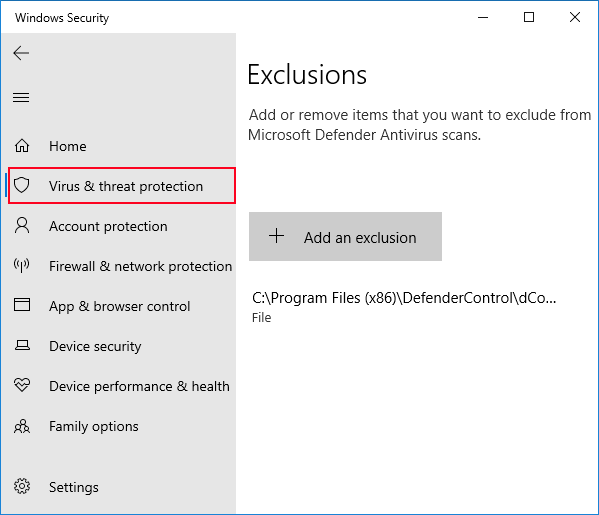
Add to Exclusions

Exclude Defender Control from Windows Defender scanning

Location: C:\Program Files (x86)\DefenderControl\ or your custom path

Close Conflicting Software

Temporarily disable other antivirus programs

Note: Re-enable your primary AV after Defender is successfully disabled

Restart System

Always restart after making Defender changes

Important: Some changes require a full system restart to take effect

Advanced Troubleshooting

Registry Issues

Check Registry Permissions

Ensure you have write access to Defender registry keys

HKLM\SOFTWARE\Microsoft\Windows Defender
Service Dependencies

Verify Windows Defender services are not locked by other processes

System Compatibility

Windows Version Check

Ensure you're running a supported Windows version

✓ Windows 10 (1903+) • ✓ Windows 11 (All versions)
Group Policy Conflicts

Check if Group Policy is enforcing Defender settings

Download Defender Control

Get the latest version of Defender Control from trusted sources. Free download with no registration required.

Trusted Official Build

Get the safest Defender Control build

Download the original portable executable straight from Sordum. No bundled installers, no telemetry, and digitally signed binaries for peace of mind.

Package Size

~500 KB

Build Version

v2.1 Stable

  • Direct HTTPS download from Sordum.org
  • Portable executable – no installation required
  • SHA-256 checksum provided for manual verification
sha256 d5d0b4c9f1f0a2a0e2e955e7c4d2f5c0d7bca4e6a98d63f1b2f447c1b0c9a3e8

Official Source

Sordum Download

Verified clean archive delivered over SSL with zero third-party ads.

Download Now

Format

ZIP Archive

Signature

Publisher Signed

Last Update

March 2022

Status

Malware Scan Clean

Direct download • No ads • Virus-free

System Requirements

Operating System

  • • Windows 11 (All versions)
  • • Windows 10 (1903+)
  • • Windows 8.1
  • • Windows 7 SP1+

Architecture

  • • 32-bit (x86)
  • • 64-bit (x64)
  • • ARM64 (limited)

Memory

  • • Minimum: 512MB RAM
  • • Recommended: 2GB RAM

Storage

  • • Installation: ~1MB
  • • Temporary: ~50MB

Complete Installation & Usage Guide

Installation Steps

1
Download & Extract

Download the ZIP file from any trusted source above. Extract to a folder you have write permissions to (avoid Program Files for easier access).

2
Run as Administrator

Right-click on dControl.exe and select "Run as administrator". This is crucial for the tool to work properly.

3
Add to Exclusions (Recommended)

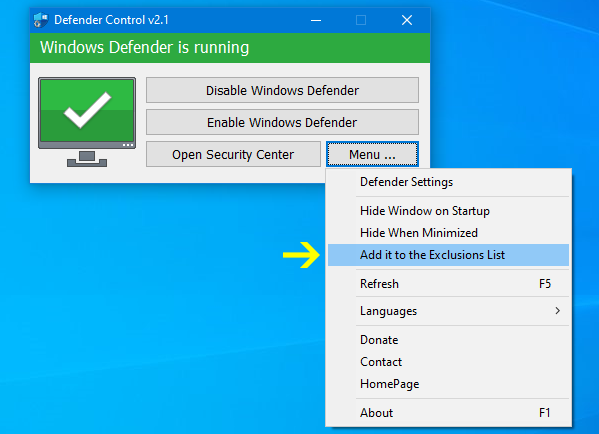
Click the "Add it to the exclusion list" button in Defender Control. This prevents false positives and ensures smooth operation.

4
Disable Tamper Protection

For Windows 11 users: Go to Windows Security → Virus & threat protection → Manage settings → Turn off Tamper Protection.

How to Use Defender Control

1
Check Current Status

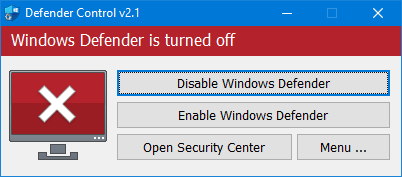
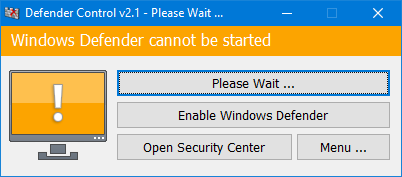
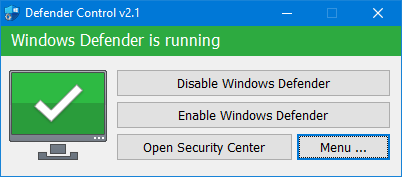
The main interface shows Defender status with color indicators: Green = Running, Red = Disabled, Orange = Partially disabled.

2
Disable Defender

Click the "Disable Defender" button. The tool will automatically stop all Defender services and modify necessary registry keys and group policies.

3
Wait for Confirmation

Wait for the status indicator to turn red and show "Defender is disabled". This process takes 10-30 seconds depending on your system.

4
Restart Your System

Important: Restart your computer to fully apply the changes. Defender will remain disabled after reboot.

5
Re-enable When Needed

To restore Defender, run the tool again and click "Enable Defender". The tool provides one-click restoration of all original settings.

Important Notes

Security Considerations
  • • Defender Control is safe and open-source
  • • No malware or backdoors (verified on GitHub)
  • • Only modifies Windows Defender settings
  • • Does not affect other security software
Performance Impact
  • • Eliminates 10-20% CPU usage during idle
  • • Faster file operations (up to 50% improvement)
  • • Reduced memory consumption
  • • Better gaming and content creation performance

Frequently Asked Questions

Answers to the most common questions about Defender Control, Windows Defender management, and system performance optimization.

Is Defender Control Safe to Use?

Yes, Defender Control is completely safe. It's an open-source project hosted on GitHub with transparent code that anyone can review. The tool only modifies Windows Defender settings and doesn't contain any malware, spyware, or unwanted software. It's been used by thousands of users worldwide without any reported security incidents.

Verification: Source code available on GitHub • No malware detected by VirusTotal • MIT License • Community reviewed

Which Windows Versions Are Supported?

Defender Control supports all modern Windows versions including Windows 11, Windows 10 (version 1903 and later), Windows 8.1, and Windows 7 SP1. The tool automatically detects your Windows version and applies the appropriate settings and registry modifications.

Windows 11
All versions
Windows 10
1903+
Windows 8.1
Fully supported
Windows 7
SP1 required

How Do I Re-enable Windows Defender?

Re-enabling Defender is just as easy as disabling it. Simply run Defender Control again with administrator privileges and click the "Enable Defender" button. The tool will automatically restore all original settings, restart necessary services, and re-enable Windows Defender protection.

Restoration Process:

  1. Run dControl.exe as administrator
  2. Click "Enable Defender" button
  3. Wait for confirmation (status turns green)
  4. Restart computer to complete restoration

Do I Still Need Antivirus Protection?

While Defender Control disables Windows Defender, it's strongly recommended to use alternative antivirus protection. Windows Defender provides essential real-time protection against malware, viruses, and other threats. Consider reputable alternatives like:

Avast Free Antivirus

Free, feature-rich antivirus

Malwarebytes

Excellent malware removal

ESET NOD32

Lightweight, effective protection

What's the Performance Impact?

Disabling Windows Defender with Defender Control can significantly improve system performance, especially on lower-end hardware. Users typically experience 10-30% performance improvements in CPU usage, memory consumption, and file operation speeds.

Performance Gains:

  • Faster file copying (up to 50% improvement)
  • Reduced CPU usage during idle (10-20%)
  • Lower memory consumption
  • Better gaming performance

Use Cases:

  • Gaming computers
  • Video editing workstations
  • Development machines
  • Servers with third-party AV

What About Windows 11 Tamper Protection?

Windows 11's Tamper Protection is Microsoft's enhanced security feature that prevents unauthorized changes to Windows Defender settings. Defender Control includes advanced bypass techniques that work with most Windows 11 installations, but some heavily customized or enterprise-managed systems may require manual intervention.

For Windows 11 Users:

  1. Go to Windows Security → Virus & threat protection → Manage settings
  2. Turn off "Tamper Protection"
  3. Run Defender Control as administrator
  4. Re-enable Tamper Protection after successful disabling (optional)

Latest Articles & Guides

Comprehensive guides, tutorials, and insights about Windows Defender management, system optimization, and cybersecurity best practices.